Groups
What are groups?
Groups are containers that hold configuration information to help organize workspaces in a hierarchical manner.
Inheritance
Resources set at a group level are inherited by all child groups and workspaces. Children can override inherited variable values. The following resources support inheritance: variables, managed identities, memberships, service accounts, runner agents, Terraform modules, and VCS providers.
Namespace settings such as workspace output visibility are also inherited through the group hierarchy and can be overridden at a lower level.
Tharsis UI's groups page provides access to activity events, runs, variables, managed identities, runner agents, service accounts, Terraform modules, VCS providers, federated registries, provider mirror, GPG keys, members, and settings.
Check the FAQ to see if there's already an answer.
Create a group
Groups can be created directly via the UI or the Tharsis-CLI.
Top-level groups may only be created by system administrators.
Creating a subgroup via the UI
-
From the group details page, click the
New Subgroupbutton in the upper right-hand corner: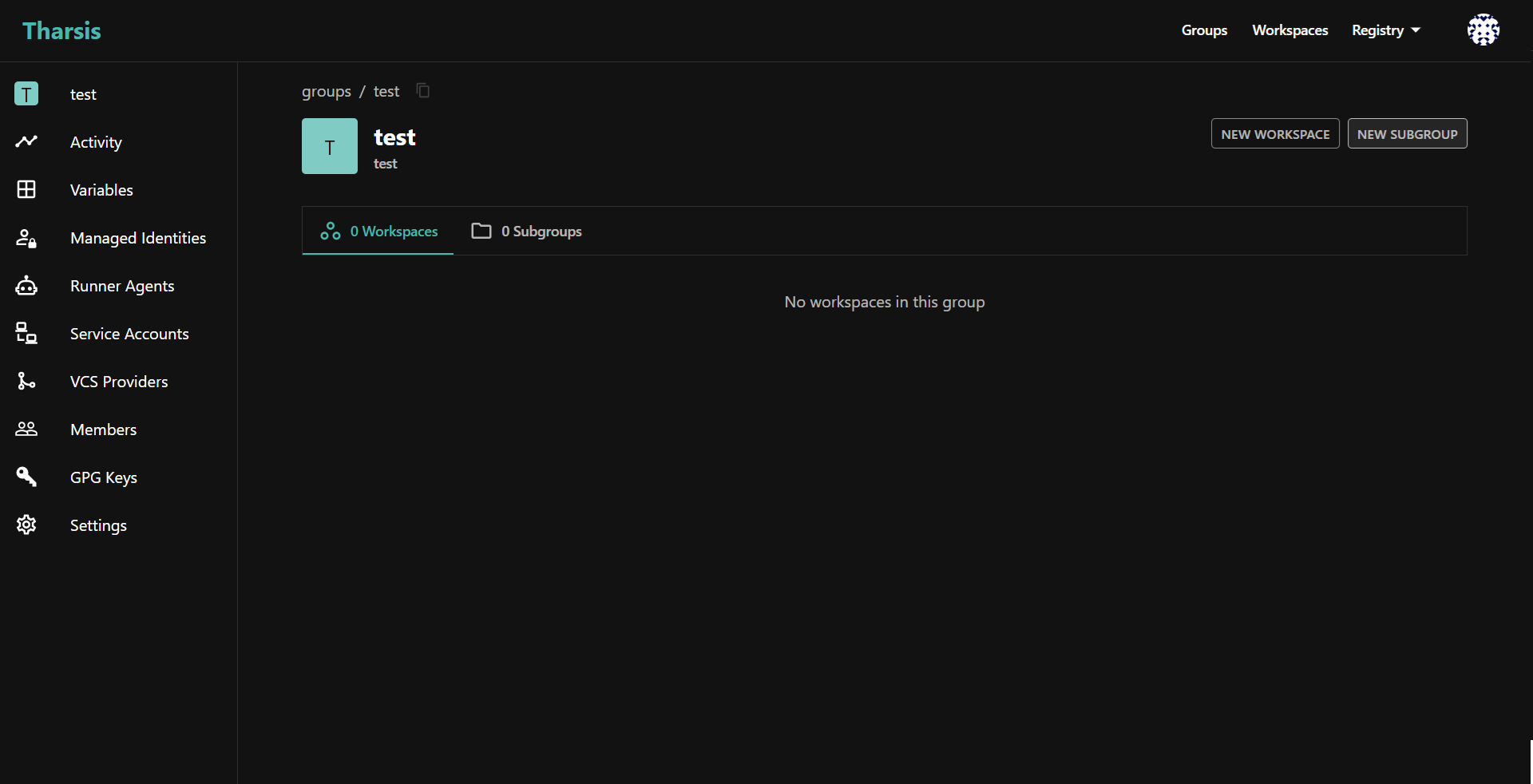
-
Provide the group name, optionally a short memorable description, and click
CREATE GROUP: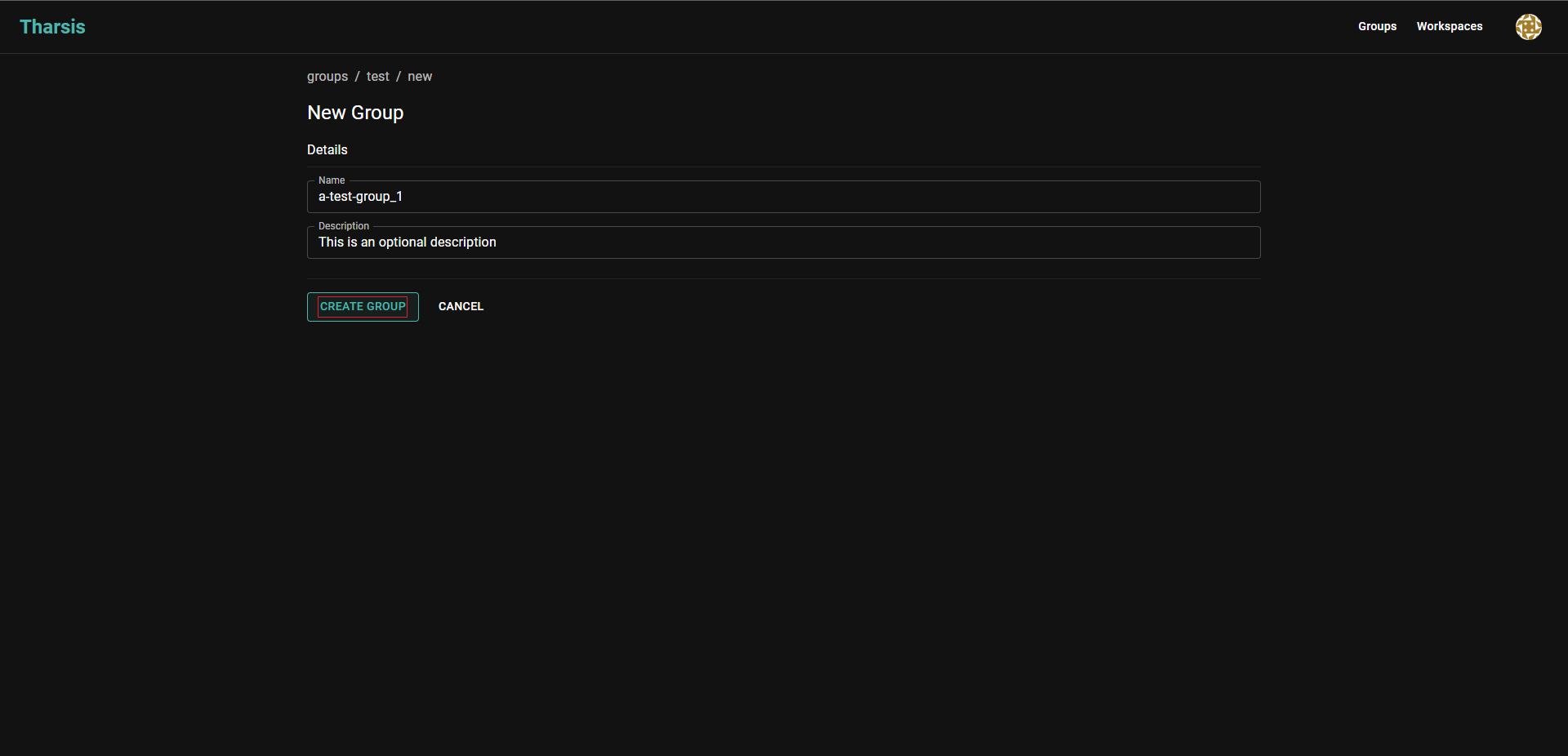 caution
Group names may only contain digits, lowercase letters with a hyphen or an underscore in non-leading or trailing positions.
A group's name cannot be changed once created. It will have to be deleted and recreated, which is dangerous.
Update a group
-
Click
Settingson the left-hand side navigation menu to navigate to the group settings page: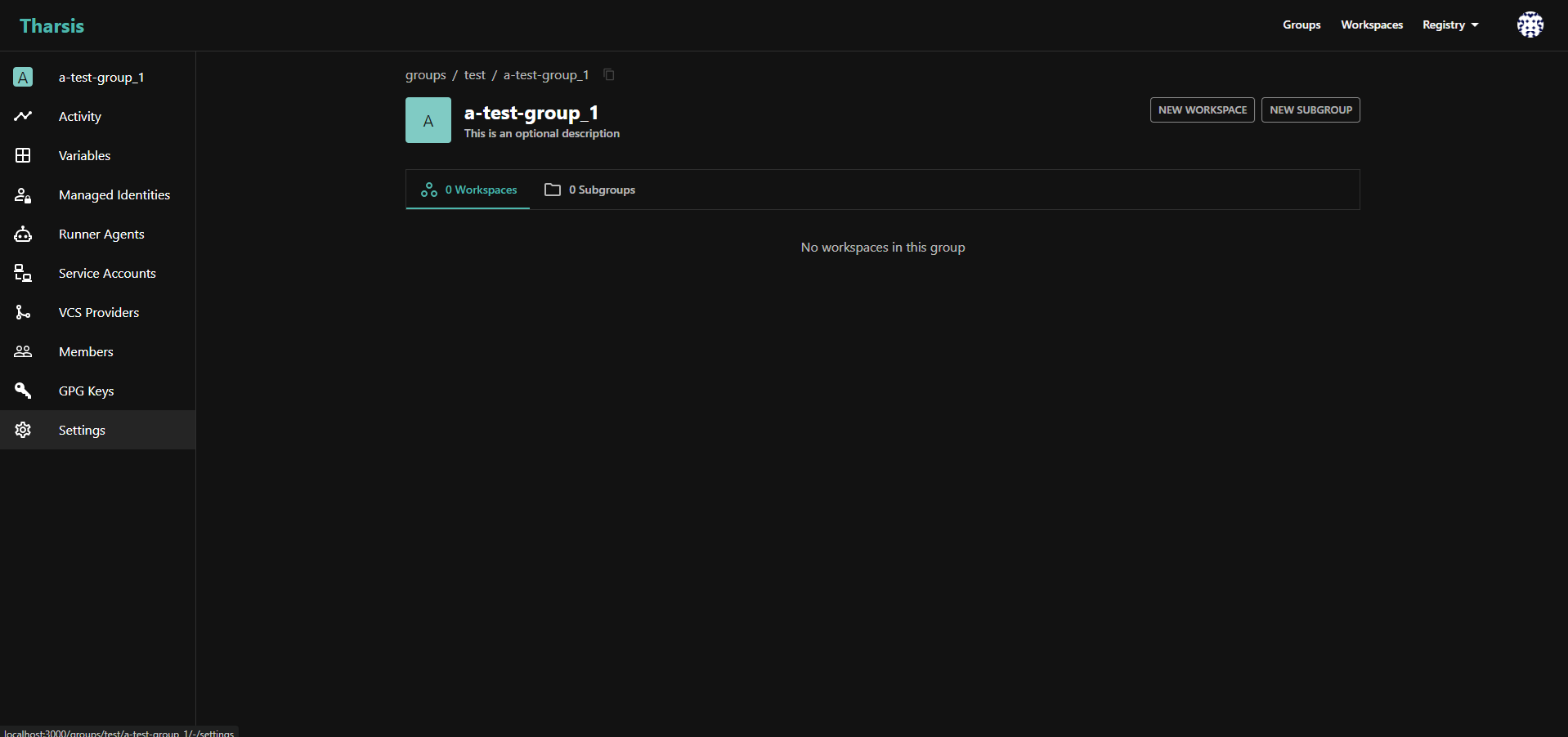
-
Provide a new group description (can be empty) and click
SAVE CHANGES: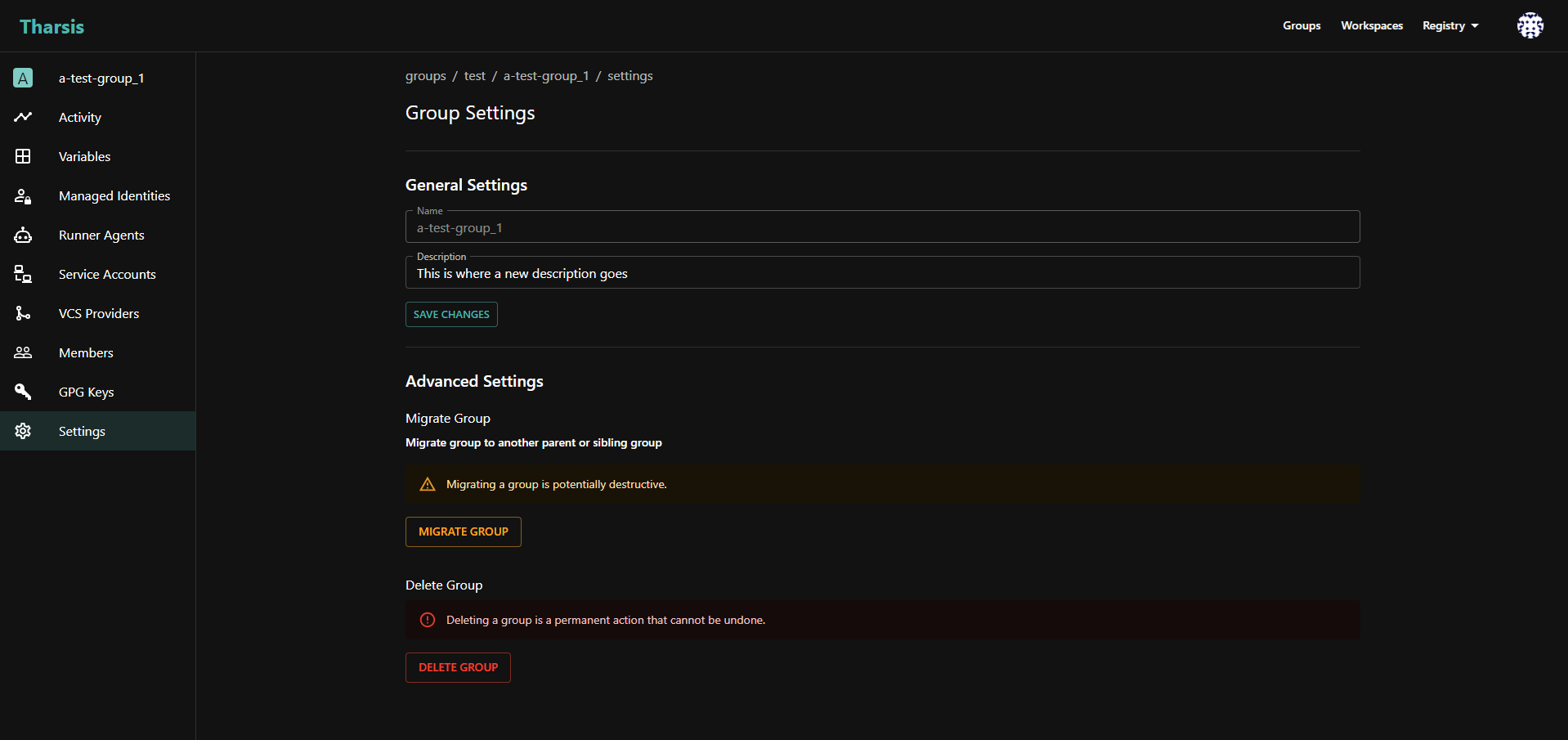
Advanced Settings
Migrate a group
-
From the group settings page, click the
MIGRATE GROUPbutton: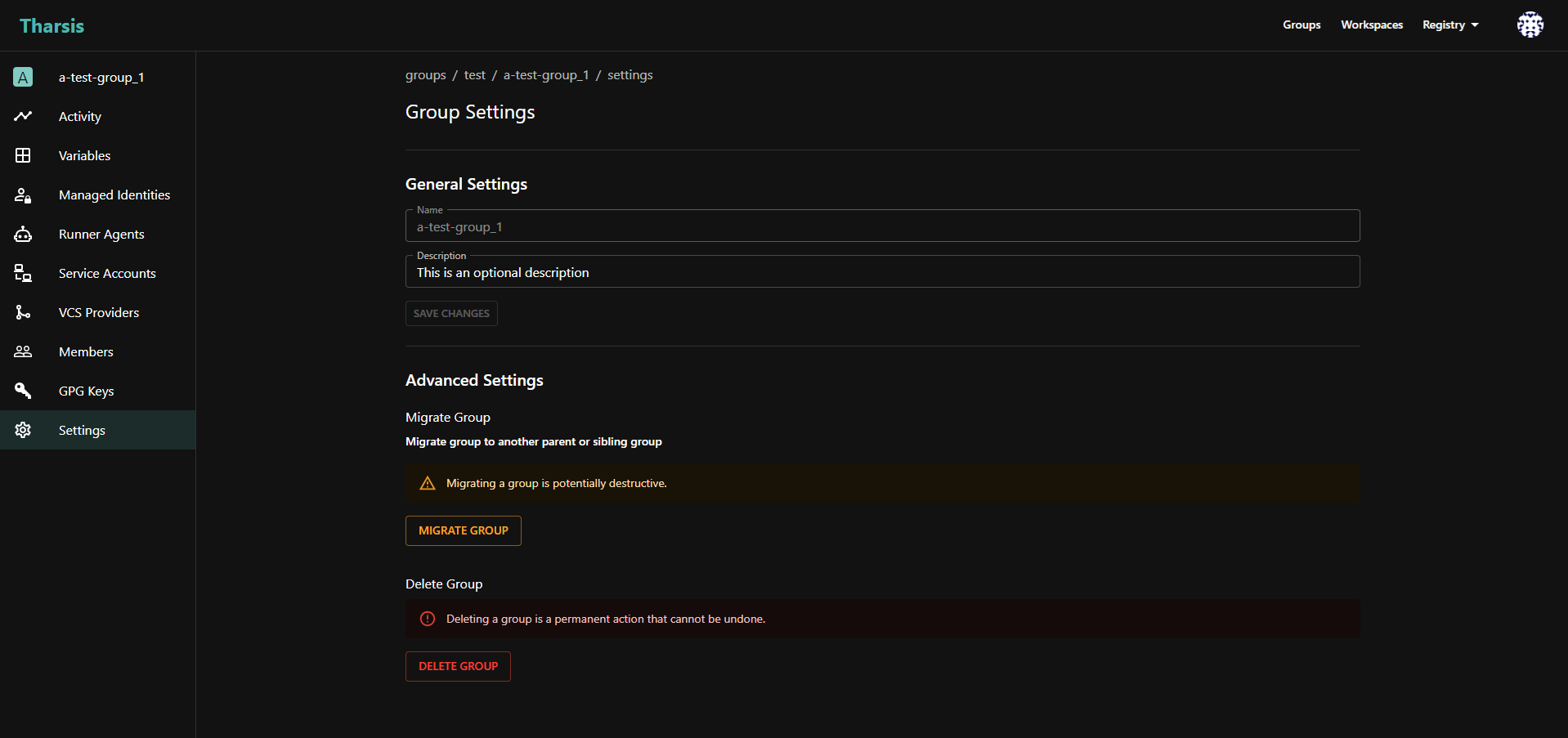
-
Select the new parent group and then click
MIGRATE: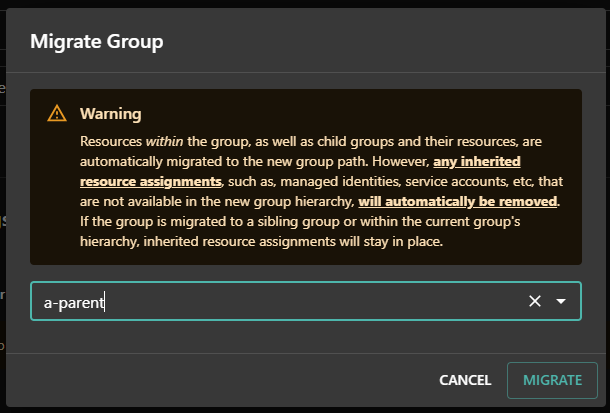
To migrate a group, the user must have permissions to create a group in the new hierarchy and delete the group from the current hierarchy. Without these permissions, the migration will not succeed. To migrate a group to root level, the user must have system administrator permissions.
Migrating a group will remove any inherited resource assignments, such as managed identities, service accounts, etc., that are not available in the new group hierarchy.
Delete a group
-
From the group settings page, click the
DELETE GROUPbutton: -
Enter the group path to confirm deleting and then click
DELETE: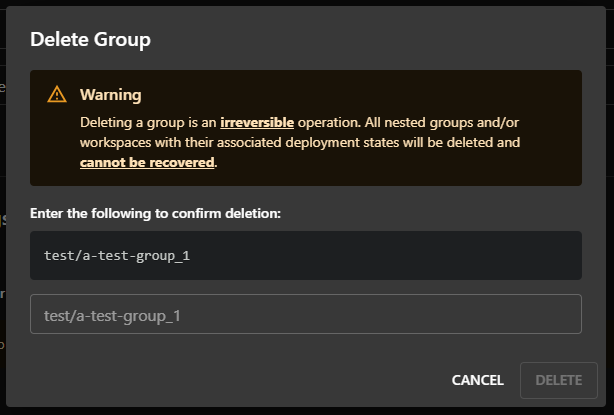
Deleting a group is an irreversible operation. All nested groups and/or workspaces with their associated deployment states will be deleted and cannot be recovered.
Proceed with extreme caution as deletion permanently removes ALL nested groups and/or workspaces with their associated deployment states. If unsure, do not proceed.
Frequently asked questions (FAQ)
Who can create/update/migrate/delete groups?
- Owner can delete top-level groups; deployer can delete lower-level groups.
- Owner and deployer can migrate a group. They must also be an owner or deployer in the target parent group.
- Viewer cannot modify a group.
- System administrator can create/migrate/delete any group.